
Lower your internet bill
61% of people overpay for their internet.
Are you one of them?
Unlock exclusive offers in your area!
Call now
[tel]Enter zip code
Why Your Internet Keeps Disconnecting
", "inLanguage": "en-US" }, { "@type": "BreadcrumbList", "@id": "https://compareinternet.com/blog/why-your-internet-keeps-disconnecting-and-how-to-fix-it/#breadcrumb", "itemListElement": [ { "@type": "ListItem", "position": "1", "item": { "@id": "https://compareinternet.com/", "name": "Home" } }, { "@type": "ListItem", "position": "2", "item": { "@id": "https://compareinternet.com/blog/", "name": "Blog" } }, { "@type": "ListItem", "position": "3", "item": { "@id": "https://compareinternet.com/blog/why-your-internet-keeps-disconnecting-and-how-to-fix-it/", "name": "Why Your Internet Keeps Disconnecting and How to Fix It" } } ] }, { "@type": "WebPage", "@id": "https://compareinternet.com/blog/why-your-internet-keeps-disconnecting-and-how-to-fix-it/#webpage", "url": "https://compareinternet.com/blog/why-your-internet-keeps-disconnecting-and-how-to-fix-it/", "name": "DISH vs Cable | Infinity DISH", "datePublished": "2024-07-05T15:02:16+00:00", "dateModified": "2026-06-26T12:23:52+00:00", "isPartOf": { "@id": "https://compareinternet.com//#website" }, "primaryImageOfPage": { "@id": "https://content.isg.us/wp-content/uploads/2024/07/Disconnect1.jpg" }, "inLanguage": "en-US", "breadcrumb": { "@id": "https://compareinternet.com/blog/why-your-internet-keeps-disconnecting-and-how-to-fix-it/#breadcrumb" } }, { "@type": "Person", "@id": "https://compareinternet.com/rosslyn-elliott/", "name": "Rosslyn Elliott", "url": "https://compareinternet.com/rosslyn-elliott/", "image": { "@type": "ImageObject", "@id": "https://content.isg.us/wp-content/uploads/2023/02/Roz-Elliot.jpeg", "url": "https://content.isg.us/wp-content/uploads/2023/02/Roz-Elliot.jpeg", "caption": "Rosslyn Elliott", "inLanguage": "en-US" }, "worksFor": { "@id": "https://compareinternet.com/" } }, { "@type": "BlogPosting", "headline": "Why Your Internet Keeps Disconnecting and How to Fix It", "keywords": "disconnecting", "datePublished": "2024-07-05T15:02:16+00:00", "dateModified": "2026-06-26T12:23:52+00:00", "articleSection": "Blog", "author": { "@id": "https://compareinternet.com/rosslyn-elliott/", "name": "Rosslyn Elliott", "url": "https://compareinternet.com/rosslyn-elliott/" }, "publisher": { "@id": "https://compareinternet.com/#organization" }, "description": "Does your internet keep disconnecting at random lately? Solve the mystery behind those disconnections and enjoy stable internet.", "name": "Why Your Internet Keeps Disconnecting and How to Fix It", "@id": "https://compareinternet.com/#richSnippet", "isPartOf": { "@id": "https://compareinternet.com/#webpage" }, "image": { "@id": "https://content.isg.us/wp-content/uploads/2024/07/Disconnect1.jpg" }, "inLanguage": "en-US", "mainEntityOfPage": { "@id": "https://compareinternet.com/#webpage" } }, { "@context": "https://schema.org", "@type": "NewsArticle", "articleBody": "<p>You’re in the middle of a job interview on Zoom when your screen freezes. It takes five minutes to get your connection back, and you can tell the hiring manager is not impressed.</p><p>Or, you are one second away from defeating a big boss in Elden Ring. Just as you raise your sword, that dreaded “No Internet Connection” message pops up.</p><p>Chances are that if you’re here reading this, something frustrating has been happening with your internet lately! We’re here to help.</p><p>In this comprehensive guide, we’ll show you how to solve the mystery behind those disconnections. It’s easy to be an internet detective when you have a toolkit of quick solutions.</p><h2>Why Does My Internet Keep Disconnecting?</h2><p>Let’s solve your disconnection problem in the way we would solve any mystery. First, we present the usual suspects! Here are the scenarios that may be causing your unreliable internet.</p><h3>The Aging Router Dilemma</h3><p><a href="https://www.compareinternet.com/blog/best-modem-router-combos/" target="_blank" rel="noopener noreferrer">Routers and modems</a> don’t last forever. These unsung heroes of our digital lives have a lifespan of 3-7 years. As they age, they start to show their digital wrinkles:</p><ul><li>Slower processing speeds: Your old router might struggle to keep up with the demands of today’s internet, leading to frequent disconnections.</li><li>Outdated security features: Older routers may lack the latest security protocols, making them vulnerable to attacks that can disrupt your connection [1].</li><li>Compatibility issues: As new technologies emerge, your aging router might not play well with newer devices or internet standards.</li></ul><p> </p><div id="attachment_6287" style="width: 1034px" class="wp-caption alignnone"><img loading="lazy" decoding="async" aria-describedby="caption-attachment-6287" class="size-large wp-image-6287 cap_t cap_cv c_color_w" src="https://content.isg.us/wp-content/uploads/2024/07/Disconnect2-1024x512.jpg" alt="aging router sits on desk" width="1024" height="512" srcset="https://content.isg.us/wp-content/uploads/2024/07/Disconnect2-1024x512.jpg 1024w, https://content.isg.us/wp-content/uploads/2024/07/Disconnect2-300x150.jpg 300w, https://content.isg.us/wp-content/uploads/2024/07/Disconnect2-768x384.jpg 768w, https://content.isg.us/wp-content/uploads/2024/07/Disconnect2.jpg 1200w" sizes="auto, (max-width: 1024px) 100vw, 1024px" /><p id="caption-attachment-6287" class="wp-caption-text">Old routers may not work well</p></div><h3>The Wi-Fi Signal Strength Saga</h3><p>Wi-Fi signals are invisible radio waves that travel through your home [2]. But invisible does not mean invincible. Several factors can weaken these signals:</p><ul><li>Distance from the router: The further you are, the weaker the signal. It’s like trying to hear a whisper from across a noisy room.</li><li>Physical obstacles: Walls, floors, and large furniture can act like signal kryptonite. Large metal objects are problematic and can turn your home into an obstacle course for Wi-Fi signals.</li><li>Interference from other devices: Your neighbor’s Wi-Fi, cordless phones, and even microwaves can create a crackling mess of signal interference.</li></ul><p>If your signal is too weak, your data gets garbled or lost entirely as it travels, leading to those frustrating disconnections.</p><h3>The Network Congestion Conundrum</h3><p>During off-peak hours, data rushes along smoothly on your network. But when everyone in the house decides to stream<a href="https://www.compareinternet.com/blog/understanding-4k-streaming-is-ultra-hd-worth-it/" target="_blank" rel="noopener noreferrer"> 4K videos</a>, join video calls, and download massive files, it’s like rush hour traffic – everything slows down, and some connections might drop altogether.</p><p>This congestion isn’t just about the number of devices. The type of activity matters too. Streaming 4K video or<a href="https://www.compareinternet.com/blog/what-is-a-good-internet-speed-for-gaming/" target="_blank" rel="noopener noreferrer"> online gaming</a> can take up more space and slow things down for everyone else.</p><h3>The ISP Issue Iceberg</h3><p>Your frequent disconnections may be just the tip of the iceberg. The bigger problem could be with the network beyond your home, from your internet service provider (ISP).</p><ul><li>Network outages: Your ISP’s infrastructure might be experiencing technical difficulties.</li><li>Maintenance work: Scheduled (or unscheduled) maintenance can cause temporary disconnections.</li><li><a href="https://www.compareinternet.com/blog/internet-slows-down-at-night-and-how-to-fix-it/" target="_blank" rel="noopener noreferrer"> Peak-hour slowdowns</a>: If too many people in your area are online simultaneously, it can strain the ISP’s network.</li><li>Weather-related problems: Severe weather can damage physical infrastructure, leading to service disruptions.</li></ul><h3></h3><div id="attachment_6290" style="width: 1034px" class="wp-caption alignnone"><img loading="lazy" decoding="async" aria-describedby="caption-attachment-6290" class="size-large wp-image-6290 cap_b cap_cv c_color_w" src="https://content.isg.us/wp-content/uploads/2024/07/Disconnect3-1024x512.jpg" alt="abstract graphic representing network with dots and connecting lines" width="1024" height="512" srcset="https://content.isg.us/wp-content/uploads/2024/07/Disconnect3-1024x512.jpg 1024w, https://content.isg.us/wp-content/uploads/2024/07/Disconnect3-300x150.jpg 300w, https://content.isg.us/wp-content/uploads/2024/07/Disconnect3-768x384.jpg 768w, https://content.isg.us/wp-content/uploads/2024/07/Disconnect3.jpg 1200w" sizes="auto, (max-width: 1024px) 100vw, 1024px" /><p id="caption-attachment-6290" class="wp-caption-text">Check your ISP’s network</p></div><h3>The Software and Driver Debacle</h3><p>Your devices need the right software to communicate effectively with your network. Outdated or corrupted network drivers are speaking the wrong language – messages then get lost in translation. End result? Disconnections.</p><p>Over-vigilant security software can sometimes mistake normal network activity for threats [3]. It may disrupt your connection in its attempt to protect you.</p><h2>How to Fix Disconnecting Internet: Troubleshooting Your Internet Connection</h2><p>Now that we’ve identified the villains in our connectivity mystery, let’s equip you with the tools to defeat them:</p><h3>The Restart Ritual</h3><p>Never underestimate the power of the classic “turn it off and on again” method. Here’s how to do it right:</p><ul><li>Unplug both your modem and router.</li><li>Wait for at least 30 seconds.</li><li>Plug in the modem first and wait for it to fully boot up (usually when all the lights stabilize).</li><li>Then plug in the router and wait for it to establish a connection.</li><li>This process allows your devices to clear their cached data and reestablish a fresh connection with your ISP.</li></ul><h3>The Equipment Update Expedition</h3><p>Keeping your equipment up-to-date is crucial.</p><ul><li>Check for firmware updates: Most modern routers have a built-in update feature in their admin interface.</li><li>Consider an upgrade: If your router is more than 5 years old, it might be time for an upgrade. Look for routers that support the latest Wi-Fi standards (like Wi-Fi 6) for better performance and security.</li></ul><p>If you’re shopping for a<a href="https://www.compareinternet.com/blog/rent-or-buy-a-router-and-modem/" target="_blank" rel="noopener noreferrer"> new router</a>, think about your coverage needs. A small apartment might be fine with a single router, while a larger home might benefit from a<a href="https://www.compareinternet.com/blog/best-mesh-wi-fi-routers/" target="_blank" rel="noopener noreferrer"> mesh network</a> system.</p><p> </p><div id="attachment_6291" style="width: 1034px" class="wp-caption alignnone"><img loading="lazy" decoding="async" aria-describedby="caption-attachment-6291" class="size-large wp-image-6291 cap_c cap_cv c_color_w" src="https://content.isg.us/wp-content/uploads/2024/07/Disconnect4-1024x512.jpg" alt="diagram of house to show router placement" width="1024" height="512" srcset="https://content.isg.us/wp-content/uploads/2024/07/Disconnect4-1024x512.jpg 1024w, https://content.isg.us/wp-content/uploads/2024/07/Disconnect4-300x150.jpg 300w, https://content.isg.us/wp-content/uploads/2024/07/Disconnect4-768x384.jpg 768w, https://content.isg.us/wp-content/uploads/2024/07/Disconnect4.jpg 1200w" sizes="auto, (max-width: 1024px) 100vw, 1024px" /><p id="caption-attachment-6291" class="wp-caption-text">Change your router placement</p></div><h3>The Router Relocation Mission</h3><p>Finding the perfect spot for your router can significantly improve your connection:</p><ul><li>Aim for central placement: This ensures more even coverage throughout your home.</li><li><a href="https://www.compareinternet.com/blog/best-router-placement-for-fast-wi-fi/" target="_blank" rel="noopener noreferrer"> Elevate your router</a>: Placing it on a high shelf can help signals travel further.</li><li>Avoid signal-blocking materials: Keep it away from metal objects, thick walls, and appliances that might interfere.</li></ul><h3>The Network Decluttering Drive</h3><p>Reducing network congestion can help maintain a stable connection:</p><ul><li>Audit your connected devices: Disconnect devices you’re not actively using.</li><li>Prioritize important connections: Many routers allow you to prioritize certain devices or types of traffic.</li><li>Upgrade your internet plan: If you consistently max out your<a href="https://www.compareinternet.com/blog/bandwidth-vs-speed/" target="_blank" rel="noopener noreferrer"> bandwidth</a>, it might be time for a faster plan.</li></ul><h3>The Wired Wonder-Solution</h3><p>For devices that need the most stable connection, nothing beats a good old<a href="https://www.compareinternet.com/blog/different-types-of-ethernet-cable/" target="_blank" rel="noopener noreferrer"> Ethernet cable</a>.</p><ul><li>Directly connect important devices: Computers, gaming consoles, and smart TVs can benefit from a wired connection.</li><li>Know your Ethernet options: Use a cable that supports the speeds you want.</li></ul><p> </p><div id="attachment_6292" style="width: 1034px" class="wp-caption alignnone"><img loading="lazy" decoding="async" aria-describedby="caption-attachment-6292" class="size-large wp-image-6292 cap_c cap_cv c_color_w" src="https://content.isg.us/wp-content/uploads/2024/07/Disconnect-5-1024x512.jpg" alt="Blue ethernet cable" width="1024" height="512" srcset="https://content.isg.us/wp-content/uploads/2024/07/Disconnect-5-1024x512.jpg 1024w, https://content.isg.us/wp-content/uploads/2024/07/Disconnect-5-300x150.jpg 300w, https://content.isg.us/wp-content/uploads/2024/07/Disconnect-5-768x384.jpg 768w, https://content.isg.us/wp-content/uploads/2024/07/Disconnect-5.jpg 1200w" sizes="auto, (max-width: 1024px) 100vw, 1024px" /><p id="caption-attachment-6292" class="wp-caption-text">Try an Ethernet cable</p></div><h3>The Driver and Software Refresh</h3><p>Keeping your devices’ software up-to-date is crucial for a stable connection:</p><ul><li>Update network drivers: Check your device manufacturer’s website for the latest drivers.</li><li>Keep your operating system updated. This ensures you have the latest network protocols and security features.</li><li>Review security software settings: Make sure your antivirus isn’t set so high that it’s blocking your connection.</li></ul><h3>The ISP Investigation</h3><p>When all else fails, it’s time to look beyond your home network:</p><ul><li>Check for reported outages: Most ISPs have a status page or social media accounts where they report known issues. You can also try DownDetector.com [4].</li><li>Contact support: Don’t hesitate to reach out to your ISP’s customer support for help.</li><li>Document the problem: Keep a log of when disconnections occur, which can help identify patterns and assist tech support.</li></ul><h2>Other Reasons Why Your Internet Keeps Disconnecting</h2><p>If you haven’t found your perp yet, look into these other quick fixes that will restore a reliable internet connection.</p><h3>The Adapter Anomaly</h3><p>Sometimes, the problem lies with your device’s network adapter:</p><ul><li>Try disabling and re-enabling the adapter in your device settings.</li><li>Update or reinstall adapter drivers [5].</li><li>For chronic issues, consider a USB Wi-Fi adapter as a replacement.</li></ul><h3>The Overheating Ordeal</h3><p>Electronics and heat don’t mix well:</p><ul><li>Check for proper ventilation: Keep your router in a well-ventilated area.</li><li>Clean your devices: Dust can cause overheating, so give your router and modem a gentle cleaning occasionally.</li></ul><h3>The Crummy Cable Caper</h3><p>Don’t overlook the physical cables, wires, and plugs on your devices.</p><ul><li>Check all<a href="https://www.compareinternet.com/blog/bad-ethernet-cable-symptoms/" target="_blank" rel="noopener noreferrer"> cables for damage</a> or loose connections.</li><li>Ensure cables are securely plugged in at both ends.</li><li>Consider replacing old or worn cables.</li></ul><h3>The DNS Deception</h3><p>Your DNS (Domain Name System) server is like the internet’s phonebook, translating website names into IP addresses:</p><ul><li>Try changing to a public DNS: Google (8.8.8.8 and 8.8.4.4) or Cloudflare (1.1.1.1) are popular options.</li><li>Some ISPs have slower DNS servers, so this change can improve your browsing speed and stability.</li></ul><h3>The IP Address Identity</h3><p>IP address conflicts can cause mysterious connection issues:</p><ul><li>Set your router to automatically assign IP addresses (DHCP).</li><li>If using static IPs, ensure each device has a unique address.</li></ul><p> </p><div id="attachment_6293" style="width: 1034px" class="wp-caption alignnone"><img loading="lazy" decoding="async" aria-describedby="caption-attachment-6293" class="size-large wp-image-6293 cap_c cap_cv c_color_w" src="https://content.isg.us/wp-content/uploads/2024/07/Disconnect7-1024x512.jpg" alt="raindrops falling to symbolize bad weather" width="1024" height="512" srcset="https://content.isg.us/wp-content/uploads/2024/07/Disconnect7-1024x512.jpg 1024w, https://content.isg.us/wp-content/uploads/2024/07/Disconnect7-300x150.jpg 300w, https://content.isg.us/wp-content/uploads/2024/07/Disconnect7-768x384.jpg 768w, https://content.isg.us/wp-content/uploads/2024/07/Disconnect7.jpg 1200w" sizes="auto, (max-width: 1024px) 100vw, 1024px" /><p id="caption-attachment-6293" class="wp-caption-text">Weather affects satellite and fixed wireless signals</p></div><h3>The Weather Whodunit</h3><p>Mother Nature can sometimes get nefarious with your internet, depending on your connection type.</p><ul><li><a href="https://www.compareinternet.com/satellite-internet/" target="_blank" rel="noopener noreferrer"> Satellite</a> and<a href="https://www.compareinternet.com/fixed-wireless-internet/" target="_blank" rel="noopener noreferrer"> fixed wireless</a> connections are particularly vulnerable to snow and rain fade.</li><li>During severe weather, consider switching to a<a href="https://www.compareinternet.com/blog/using-a-mobile-hotspot-to-replace-home-internet/" target="_blank" rel="noopener noreferrer"> mobile hotspot</a> as a backup.</li></ul><h3>The Radio Wave Riddle</h3><p>Your home is filled with radio waves flying all over the place from your devices, and sometimes they cause interference. Here’s how to minimize the problem:</p><ul><li>Identify interfering devices: Cordless phones, baby monitors, and even some LED lights can interfere with Wi-Fi.</li><li>Change your Wi-Fi channel: Use a Wi-Fi analyzer app to find less congested channels and switch your router to use them.</li></ul><h3>The Security Shortfall</h3><p>A network that isn’t secure can lead to unauthorized users hogging your bandwidth and potentially causing disconnections. Plus,<a href="https://www.compareinternet.com/blog/understanding-internet-security-and-online-privacy/" target="_blank" rel="noopener noreferrer"> weak security</a> can lead to attacks that can also disrupt your connection.</p><ul><li>Set up a strong, unique password: Use a combination of uppercase and lowercase letters, numbers, and symbols. Avoid easily guessable information like birthdates or common words.</li><li>Enable WPA3 encryption: This is the latest and most secure Wi-Fi security protocol. If your router doesn’t support WPA3, use WPA2 at minimum [6].</li><li>Change default router login credentials: Many routers come with default usernames and passwords that are widely known. Change these immediately to prevent unauthorized access to your<a href="https://www.compareinternet.com/blog/how-to-login-to-your-router/" target="_blank" rel="noopener noreferrer"> router settings</a>.</li><li>Enable your router’s firewall: This adds an extra layer of protection against potential threats.</li><li>Regularly update your router’s firmware: This ensures you have the latest security patches and features.</li></ul><p> </p><p><img loading="lazy" decoding="async" class="alignnone wp-image-6294 size-large" src="https://content.isg.us/wp-content/uploads/2024/07/Disconnect8-1024x256.jpg" alt="wireless signals displaying strength of connection" width="1024" height="256" srcset="https://content.isg.us/wp-content/uploads/2024/07/Disconnect8-1024x256.jpg 1024w, https://content.isg.us/wp-content/uploads/2024/07/Disconnect8-300x75.jpg 300w, https://content.isg.us/wp-content/uploads/2024/07/Disconnect8-768x192.jpg 768w, https://content.isg.us/wp-content/uploads/2024/07/Disconnect8.jpg 1200w" sizes="auto, (max-width: 1024px) 100vw, 1024px" /></p><h2>Advanced Troubleshooting Tips for the Tech-Savvy</h2><p>For those who like to go deeper into the technical side:</p><h4>1. Analyze Wi-Fi channels like a pro</h4><p>Use tools like WiFi Analyzer (Android) or WiFi Explorer (Mac) to get a detailed view of Wi-Fi usage in your area. Look for channels with the least interference and adjust your router accordingly.</p><h4>2. Tweak router settings for optimal performance</h4><p>Use your router’s admin panel to experiment with settings like:</p><ul><li>Transmit power: Sometimes, less is more. Reducing power can decrease interference.</li><li>Frequency band: 5GHz often provides faster speeds but shorter range compared to 2.4GHz.</li><li>QoS (Quality of Service): Prioritize traffic for important applications or devices.</li></ul><h4>3. Embrace the mesh network revolution</h4><p>For larger homes or those with complex layouts, a mesh network can be a game-changer:</p><ul><li>Multiple nodes work together to blanket your home in Wi-Fi.</li><li>Seamless roaming as you move through your house.</li><li>Easy expandability by adding more nodes.</li></ul><h4>4. Extend your reach with Wi-Fi extenders or powerline adapters</h4><ul><li>Wi-Fi<a href="https://www.compareinternet.com/blog/wi-fi-extender-vs-repeater-vs-mesh-wi-fi/" target="_blank" rel="noopener noreferrer"> extenders</a> can boost your signal in dead zones.</li><li>Powerline adapters use your home’s electrical wiring to extend your network.</li></ul><h4>5. Become a network monitoring maestro</h4><p>If you’re comfortable with tech and you want the ultimate window on your network activity, use a tool like Wireshark [7].</p><ul><li>Monitor bandwidth usage by device.</li><li>Identify unusual network activity that might indicate security issues.</li><li>Track connection stability over time to identify patterns in disconnections.</li></ul><h4>6. The Factory Reset Nuclear Option</h4><p>When all else fails, resetting your router to its factory settings can be a powerful troubleshooting step. It’s like giving your router a clean slate.</p><ul><li>Locate the reset button: It’s usually a small, recessed button on the back or bottom of your router.</li><li>Press and hold: Use a paperclip to press and hold the button for about 10 seconds.</li><li>Wait for the restart: Your router will reboot and restore to its original settings.</li></ul><p>Remember, this will erase all your custom settings, so it’s best used as a last resort. Make sure you know your ISP settings before attempting this, as you’ll need to reconfigure your network afterward.</p><p> </p><div id="attachment_6295" style="width: 1034px" class="wp-caption alignnone"><img loading="lazy" decoding="async" aria-describedby="caption-attachment-6295" class="size-large wp-image-6295 cap_c cap_l c_color_w" src="https://content.isg.us/wp-content/uploads/2024/07/Disconnect9-1024x512.jpg" alt="gear symbol surrounded by circle to show power button" width="1024" height="512" srcset="https://content.isg.us/wp-content/uploads/2024/07/Disconnect9-1024x512.jpg 1024w, https://content.isg.us/wp-content/uploads/2024/07/Disconnect9-300x150.jpg 300w, https://content.isg.us/wp-content/uploads/2024/07/Disconnect9-768x384.jpg 768w, https://content.isg.us/wp-content/uploads/2024/07/Disconnect9.jpg 1200w" sizes="auto, (max-width: 1024px) 100vw, 1024px" /><p id="caption-attachment-6295" class="wp-caption-text">Factory reset as a last resort</p></div><h4>7. The Sneaky Software Conflict</h4><p>Sometimes, the culprit behind your disconnections isn’t your network itself, but the software running on your devices. Here are some common offenders:</p><ul><li>Cloud backup services: These can use a lot of bandwidth, especially during initial backups. Consider scheduling backups for off-peak hours.</li><li>Auto-updater clients: Programs like Adobe Creative Cloud or game launchers can cause periodic bandwidth spikes. Configure them to update manually or during times you’re not actively using the internet.</li><li>VPNs: While great for privacy, some<a href="https://www.compareinternet.com/blog/best-vpns/" target="_blank" rel="noopener noreferrer"> VPN services</a> can cause connection instability. Try disconnecting from your VPN to see if it improves stability.</li></ul><p>If you suspect a software conflict, try disabling these programs one at a time to identify the culprit.</p><h4>8. The Computer Network Reset Maneuver</h4><p>For Windows 10 users, resetting your computer’s network settings can resolve persistent connection issues:</p><ul><li>Open Settings and go to Network & Internet.</li><li>Scroll down and click on Network Reset.</li><li>Click “Reset now” and confirm.</li></ul><p>This will remove and reinstall all your network adapters and set other networking components back to their original settings. It’s like giving your computer’s networking a fresh start.</p><h4>9. Demystifying Wi-Fi Bands: 2.4 GHz vs. 5 GHz</h4><p>Understanding the differences between the two Wi-Fi bands<a href="https://www.compareinternet.com/blog/2-4-ghz-vs-5-ghz-wifi/" target="_blank" rel="noopener noreferrer"> (2.4 GHz and 5 GHz)</a> can help you optimize your home network:</p><p>2.4 GHz:</p><ul><li>Pros: Longer range, better at penetrating walls and solid objects.</li><li>Cons: More crowded, potentially slower due to interference.</li><li>Best for: Larger homes, devices farther from the router, older devices that don’t support 5 GHz.</li></ul><p>5 GHz:</p><ul><li>Pros: Faster speeds, less crowded.</li><li>Cons: Shorter range, less effective at penetrating walls.</li><li>Best for: Smaller homes or apartments, devices closer to the router, bandwidth-intensive activities like streaming 4K video or online gaming.</li></ul><p>Many routers are dual-band, meaning they can broadcast both 2.4 GHz and 5 GHz signals. Some even have “band steering” features that automatically connect devices to the optimal band. Some are even tri-band, with an extra band on the 5 GHz frequency range.</p><p>Pro tip: If you have a dual-band router, try setting up your 2.4 GHz and 5 GHz networks with different names (SSIDs) [8]. This allows you to manually choose which band to connect to for each device, giving you more control over your network performance.</p><p> </p><div id="attachment_6296" style="width: 1034px" class="wp-caption alignnone"><img loading="lazy" decoding="async" aria-describedby="caption-attachment-6296" class="size-large wp-image-6296 cap_b cap_cv c_color_w" src="https://content.isg.us/wp-content/uploads/2024/07/Disconnect10-1024x512.jpg" alt="woman using home laptop" width="1024" height="512" srcset="https://content.isg.us/wp-content/uploads/2024/07/Disconnect10-1024x512.jpg 1024w, https://content.isg.us/wp-content/uploads/2024/07/Disconnect10-300x150.jpg 300w, https://content.isg.us/wp-content/uploads/2024/07/Disconnect10-768x384.jpg 768w, https://content.isg.us/wp-content/uploads/2024/07/Disconnect10.jpg 1200w" sizes="auto, (max-width: 1024px) 100vw, 1024px" /><p id="caption-attachment-6296" class="wp-caption-text">Optimize your home Wi-Fi</p></div><h2>Staying Connected in a Digital World</h2><p>Now you have a complete detective’s bag full of solutions. You’re equipped to sort through the clues and tackle most connectivity issues head-on.</p><p>Just remember that your ISP is usually going to have helpful, friendly technicians to consult as well. And if for some reason your ISP is not coming through for you, we have plenty of advice on how to choose a new internet provider.</p><p>Thanks for joining us for this installment of mystery-busting and code-cracking for your internet connection!</p><p> </p><h2>Sources</h2><p>[1]<a href="https://www.consumerreports.org/electronics-computers/wireless-routers/how-to-tell-when-its-time-to-replace-your-router-a5475786635/" target="_blank" rel="noopener noreferrer"> ConsumerReports.org. “How to Tell When It’s Time to Replace Your Router.”</a></p><p>[2]<a href="https://www.scientificamerican.com/article/how-does-wi-fi-work/" target="_blank" rel="noopener noreferrer"> ScientificAmerican.com. “How Does Wi-Fi Work?”</a></p><p>[3]<a href="https://www.computer.org/resources/software-security" target="_blank" rel="noopener noreferrer"> Computer.org. “Software Security.”</a></p><p>[4]<a href="https://downdetector.com/" target="_blank" rel="noopener noreferrer"> DownDetector.com.</a></p><p>[5]<a href="https://answers.microsoft.com/en-us/windows/forum/all/how-do-i-reinstall-network-adapter/891969dc-ed81-4fc0-a81d-371054463c60" target="_blank" rel="noopener noreferrer"> Answers.Microsoft.com. “How do I reinstall a network adapter?”</a></p><p>[6]<a href="https://www.wi-fi.org/news-events/newsroom/wi-fi-alliance-introduces-wi-fi-certified-wpa3-security" target="_blank" rel="noopener noreferrer"> Wi-Fi.org. “WPA3 Security.”</a></p><p>[7]<a href="https://www.wireshark.org/about.html" target="_blank" rel="noopener noreferrer"> Wireshark.org. “About.”</a></p><p>[8]<a href="https://services.dartmouth.edu/TDClient/1806/Portal/KB/ArticleDet?ID=64656" target="_blank" rel="noopener noreferrer"> Dartmouth.edu. “What is an SSID?”</a></p><p> </p>", "headline": "Why Your Internet Keeps Disconnecting and How to Fix It", "articleSection": "Internet", "datePublished": "2024-07-05T15:02:16+00:00", "dateModified": "2026-06-26T12:23:52+00:00", "publisher": [{ "@type": "Organization", "name": "Compare Internet", "logo": { "@type": "ImageObject", "url": "https://www.compareinternet.com/wp-content/uploads/2023/02/Compare-Internet-white.png", "width": 1350, "height": 360 }, "alternateName": "Compare Internet" }], "author": [{ "@type": "Person", "name": "Rosslyn Elliott", "url": "https://compareinternet.com/authors/rosslyn-elliott/", "jobTitle": "Rosslyn Elliott", "image": { "@type": "ImageObject", "url": "https://content.isg.us/wp-content/uploads/2023/02/Roz-Elliot.jpeg", "height": 337, "width": 337 } }], "image": [{ "@type": "ImageObject", "url": "https://content.isg.us/wp-content/uploads/2024/07/Disconnect1.jpg", "height": 1200, "width": 750 }], "description": "Why Your Internet Keeps Disconnecting and How to Fix It", "wordCount": "4068", "mainEntityOfPage": "https://compareinternet.com/blog/why-your-internet-keeps-disconnecting-and-how-to-fix-it/" } ] } Use code: KALA & receive a $50 gift card with your order!
 Are you happy with your Internet service?

About the author
You’re in the middle of a job interview on Zoom when your screen freezes. It takes five minutes to get your connection back, and you can tell the hiring manager is not impressed.
Or, you are one second away from defeating a big boss in Elden Ring. Just as you raise your sword, that dreaded “No Internet Connection" message pops up.
Chances are that if you’re here reading this, something frustrating has been happening with your internet lately! We’re here to help.
In this comprehensive guide, we’ll show you how to solve the mystery behind those disconnections. It’s easy to be an internet detective when you have a toolkit of quick solutions.
Let’s solve your disconnection problem in the way we would solve any mystery. First, we present the usual suspects! Here are the scenarios that may be causing your unreliable internet.
Routers and modems don’t last forever. These unsung heroes of our digital lives have a lifespan of 3-7 years. As they age, they start to show their digital wrinkles:
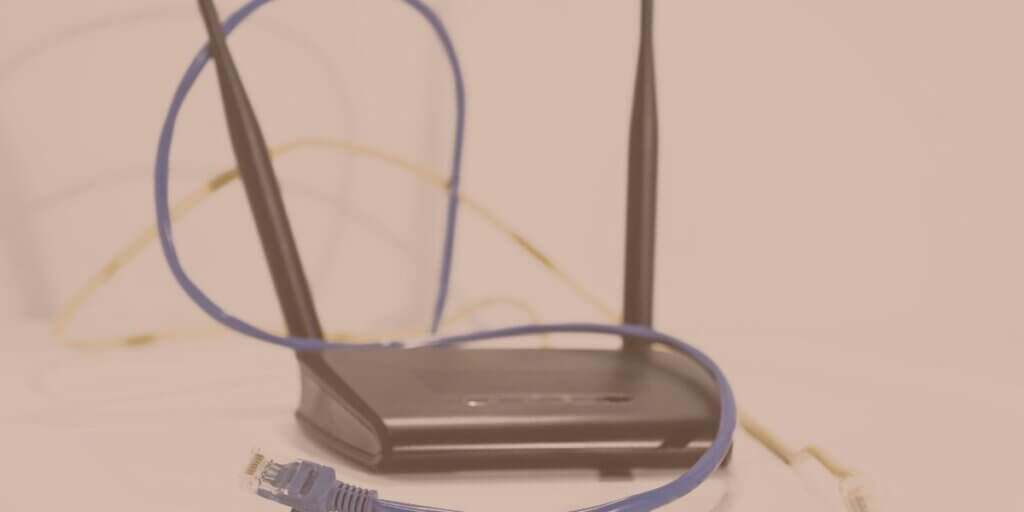
Old routers may not work well
Wi-Fi signals are invisible radio waves that travel through your home [2]. But invisible does not mean invincible. Several factors can weaken these signals:
If your signal is too weak, your data gets garbled or lost entirely as it travels, leading to those frustrating disconnections.
During off-peak hours, data rushes along smoothly on your network. But when everyone in the house decides to stream 4K videos, join video calls, and download massive files, it’s like rush hour traffic – everything slows down, and some connections might drop altogether.
This congestion isn’t just about the number of devices. The type of activity matters too. Streaming 4K video or online gaming can take up more space and slow things down for everyone else.
Your frequent disconnections may be just the tip of the iceberg. The bigger problem could be with the network beyond your home, from your internet service provider (ISP).

Check your ISP’s network
Your devices need the right software to communicate effectively with your network. Outdated or corrupted network drivers are speaking the wrong language – messages then get lost in translation. End result? Disconnections.
Over-vigilant security software can sometimes mistake normal network activity for threats [3]. It may disrupt your connection in its attempt to protect you.
Now that we’ve identified the villains in our connectivity mystery, let’s equip you with the tools to defeat them:
Never underestimate the power of the classic “turn it off and on again" method. Here’s how to do it right:
Keeping your equipment up-to-date is crucial.
If you’re shopping for a new router, think about your coverage needs. A small apartment might be fine with a single router, while a larger home might benefit from a mesh network system.
Change your router placement
Finding the perfect spot for your router can significantly improve your connection:
Reducing network congestion can help maintain a stable connection:
For devices that need the most stable connection, nothing beats a good old Ethernet cable.
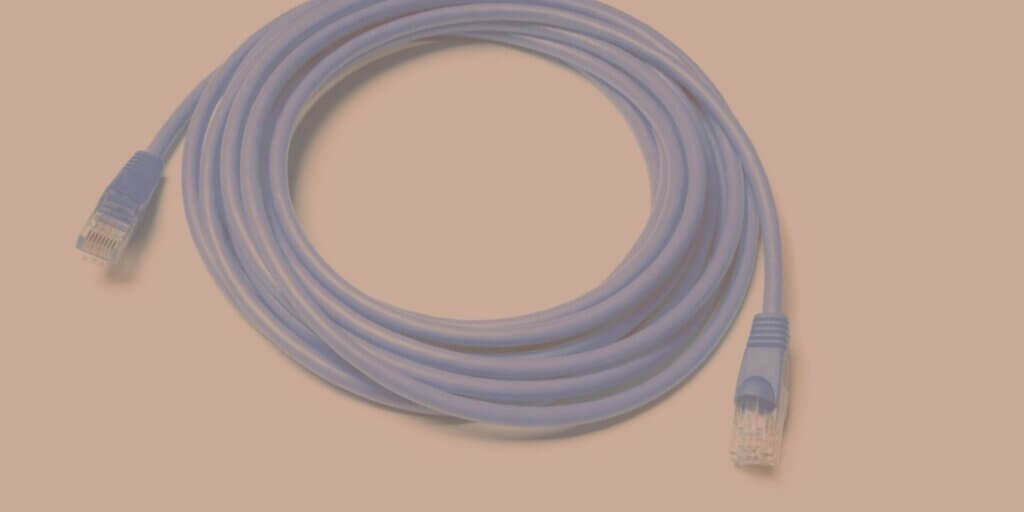
Try an Ethernet cable
Keeping your devices’ software up-to-date is crucial for a stable connection:
When all else fails, it’s time to look beyond your home network:
If you haven’t found your perp yet, look into these other quick fixes that will restore a reliable internet connection.
Sometimes, the problem lies with your device’s network adapter:
Electronics and heat don’t mix well:
Don’t overlook the physical cables, wires, and plugs on your devices.
Your DNS (Domain Name System) server is like the internet’s phonebook, translating website names into IP addresses:
IP address conflicts can cause mysterious connection issues:

Weather affects satellite and fixed wireless signals
Mother Nature can sometimes get nefarious with your internet, depending on your connection type.
Your home is filled with radio waves flying all over the place from your devices, and sometimes they cause interference. Here’s how to minimize the problem:
A network that isn’t secure can lead to unauthorized users hogging your bandwidth and potentially causing disconnections. Plus, weak security can lead to attacks that can also disrupt your connection.

For those who like to go deeper into the technical side:
Use tools like WiFi Analyzer (Android) or WiFi Explorer (Mac) to get a detailed view of Wi-Fi usage in your area. Look for channels with the least interference and adjust your router accordingly.
Use your router’s admin panel to experiment with settings like:
For larger homes or those with complex layouts, a mesh network can be a game-changer:
If you’re comfortable with tech and you want the ultimate window on your network activity, use a tool like Wireshark [7].
When all else fails, resetting your router to its factory settings can be a powerful troubleshooting step. It’s like giving your router a clean slate.
Remember, this will erase all your custom settings, so it’s best used as a last resort. Make sure you know your ISP settings before attempting this, as you’ll need to reconfigure your network afterward.

Factory reset as a last resort
Sometimes, the culprit behind your disconnections isn’t your network itself, but the software running on your devices. Here are some common offenders:
If you suspect a software conflict, try disabling these programs one at a time to identify the culprit.
For Windows 10 users, resetting your computer’s network settings can resolve persistent connection issues:
This will remove and reinstall all your network adapters and set other networking components back to their original settings. It’s like giving your computer’s networking a fresh start.
Understanding the differences between the two Wi-Fi bands (2.4 GHz and 5 GHz) can help you optimize your home network:
2.4 GHz:
5 GHz:
Many routers are dual-band, meaning they can broadcast both 2.4 GHz and 5 GHz signals. Some even have “band steering" features that automatically connect devices to the optimal band. Some are even tri-band, with an extra band on the 5 GHz frequency range.
Pro tip: If you have a dual-band router, try setting up your 2.4 GHz and 5 GHz networks with different names (SSIDs) [8]. This allows you to manually choose which band to connect to for each device, giving you more control over your network performance.

Optimize your home Wi-Fi
Now you have a complete detective’s bag full of solutions. You’re equipped to sort through the clues and tackle most connectivity issues head-on.
Just remember that your ISP is usually going to have helpful, friendly technicians to consult as well. And if for some reason your ISP is not coming through for you, we have plenty of advice on how to choose a new internet provider.
Thanks for joining us for this installment of mystery-busting and code-cracking for your internet connection!
[1] ConsumerReports.org. “How to Tell When It’s Time to Replace Your Router."
[2] ScientificAmerican.com. “How Does Wi-Fi Work?"
[3] Computer.org. “Software Security."
[5] Answers.Microsoft.com. “How do I reinstall a network adapter?"
[6] Wi-Fi.org. “WPA3 Security."
[8] Dartmouth.edu. “What is an SSID?"
Do you want to leave a review for AT&T Internet?
About the author

Infinity Sales Group, LLC